By Card, Online
Choose Pay Online on the invoice. Stripe, our payment provider, takes the payment and we record it straight away. We don’t add a card fee.
For Company Administrators and Finance Teams
You can pay any invoice from us by card or by bank transfer. Pay it yourself from your B2B Account, or send it to whoever pays your bills. Either way, a receipt arrives by email as soon as the payment is recorded.
Choose Pay Online on the invoice. Stripe, our payment provider, takes the payment and we record it straight away. We don’t add a card fee.
Our bank details are on every invoice PDF and on the payment page. Quote the invoice number as your reference.
Send to Finance emails the invoice and a private payment link to whoever pays it. They don’t need an account.
Every invoice email also has a Pay Invoice Online button, so you can pay straight from your inbox without signing in.
Sign in to your B2B Account and open Billing & Documents. Unpaid invoices show Awaiting Payment, with the amount outstanding and how long is left until the due date. Choose Invoices above the list to hide agreements and credit notes.
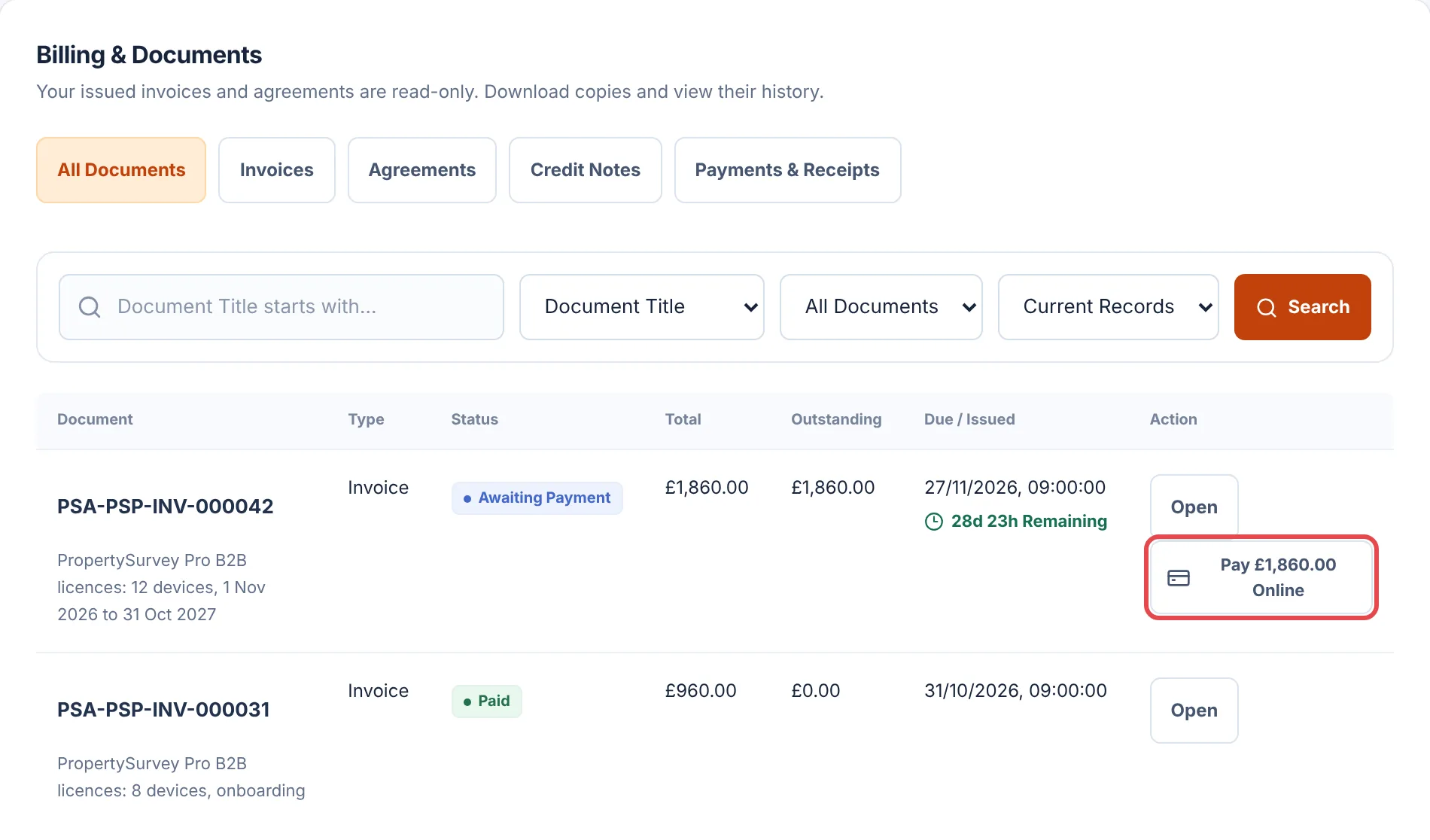 (opens full size in a new tab)
What each status means:
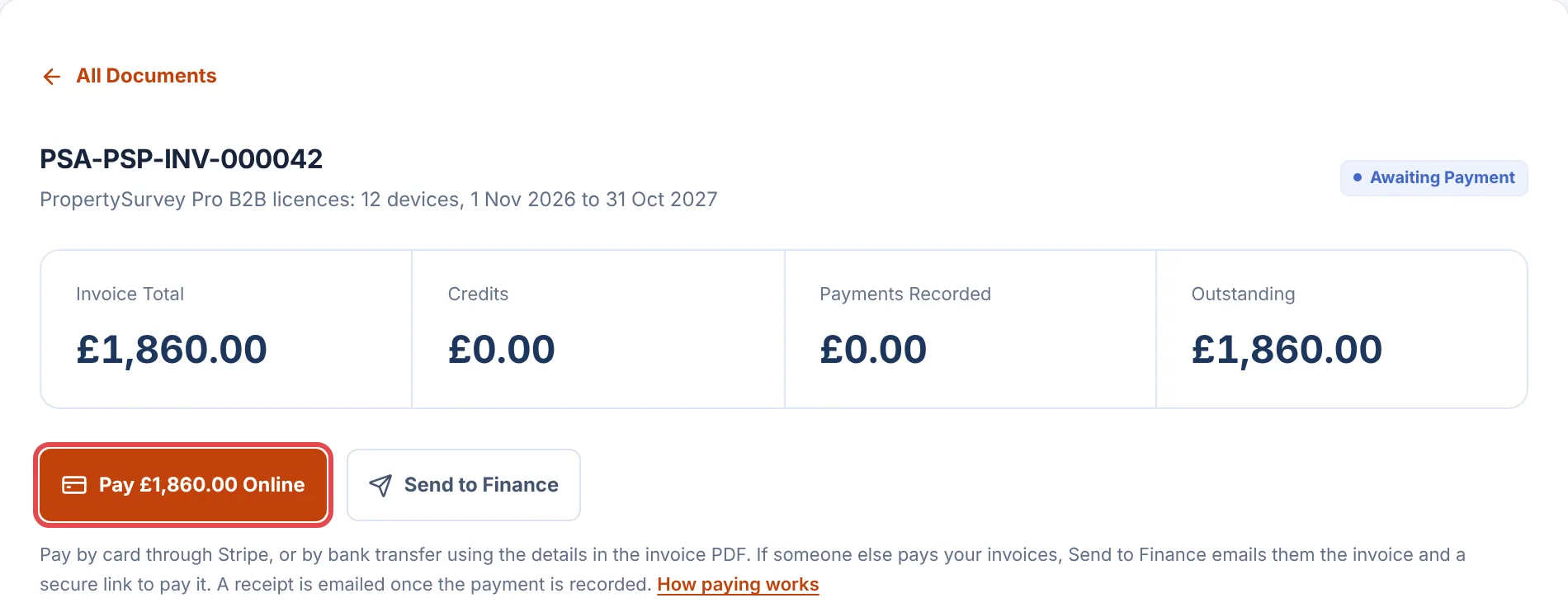
Choose Open beside it, or go straight to Pay Online from the list. The invoice shows its total, any credits, payments already recorded and what’s outstanding.
You go to a secure Stripe page for the outstanding amount. Pay by debit or credit card. Depending on your device, Stripe may also offer Apple Pay or Google Pay. Your card details go to Stripe, never to us.
When the payment goes through you come back to a Payment Received page, and the invoice shows as Paid. The receipt follows by email within a few minutes.
 (opens full size in a new tab)
If your agreement starts when the first invoice is paid, paying online releases your licences straight away. Devices pick them up at their next licence check, or immediately with Check License Now in the app.
Use the bank details printed under Payment Instructions on the invoice PDF, and quote the invoice number (for example PSA-PSP-INV-000042) as the reference so we can match it. The same details are on the payment page that opens from the invoice email.
We record a transfer once it reaches our account and we’ve matched it to the invoice. The invoice then shows as Paid and the receipt is emailed. If you pay part of an invoice, it shows as Part Paid until the rest arrives.
If someone else pays your bills, such as an accounts payable team or an outside bookkeeper, send the invoice to them from the portal rather than forwarding emails.
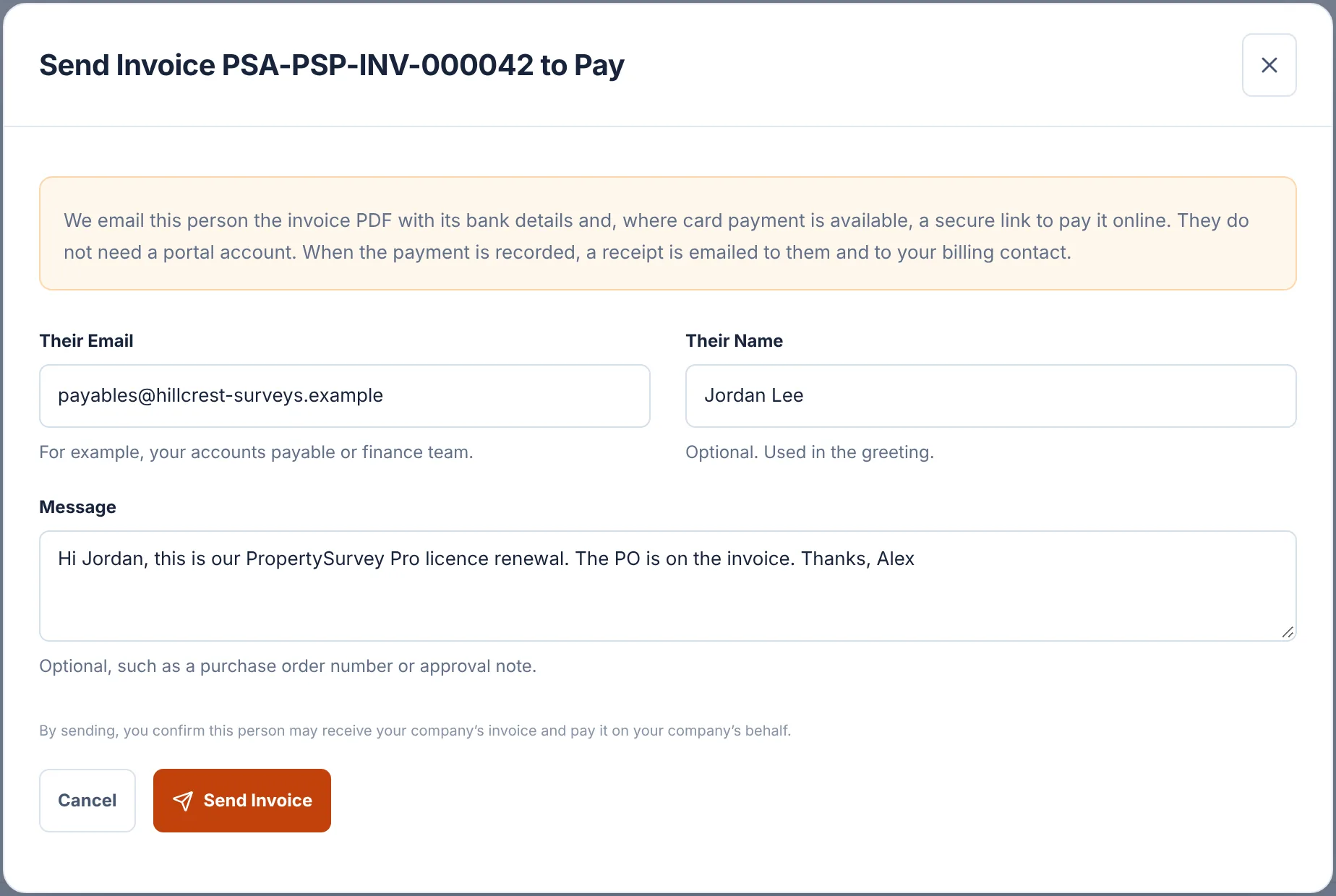
In Billing & Documents, open the invoice you want paid and choose Send to Finance.
Enter their email address. Their name is optional and only used to greet them. Add a message if it helps, such as a purchase order number or who approved the spend.
Choose Send Invoice. The invoice then shows who it was sent to, so anyone else on your team can see it’s in hand.
 (opens full size in a new tab)
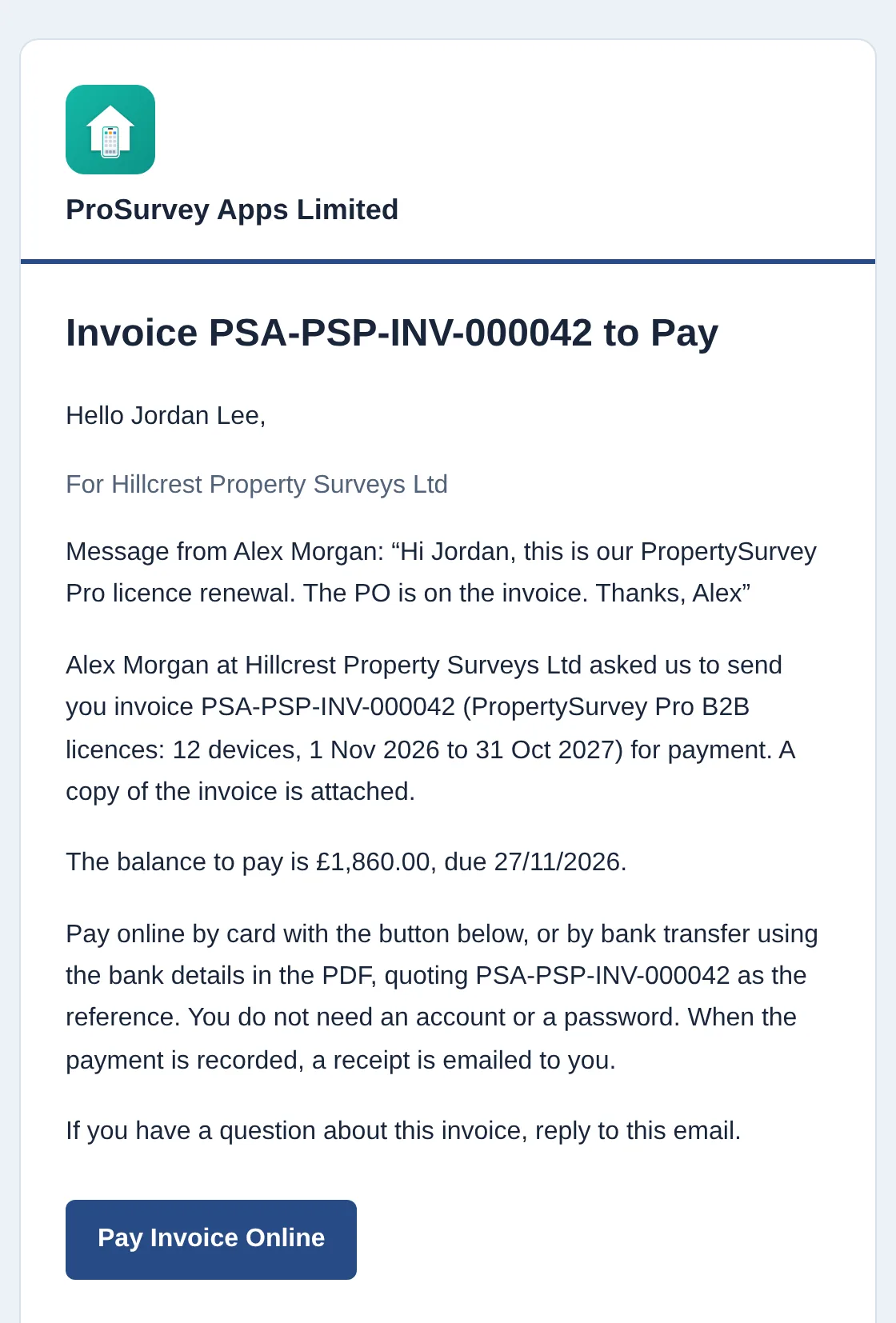
They get an email with your message at the top, the invoice PDF attached, our bank details and a Pay Invoice Online button.
 (opens full size in a new tab)
The button opens a payment page for that one invoice. It shows the amount and due date, lets them download the PDF, and gives the bank details if they’d rather transfer. They don’t sign in, and the link doesn’t open anything else in your account.
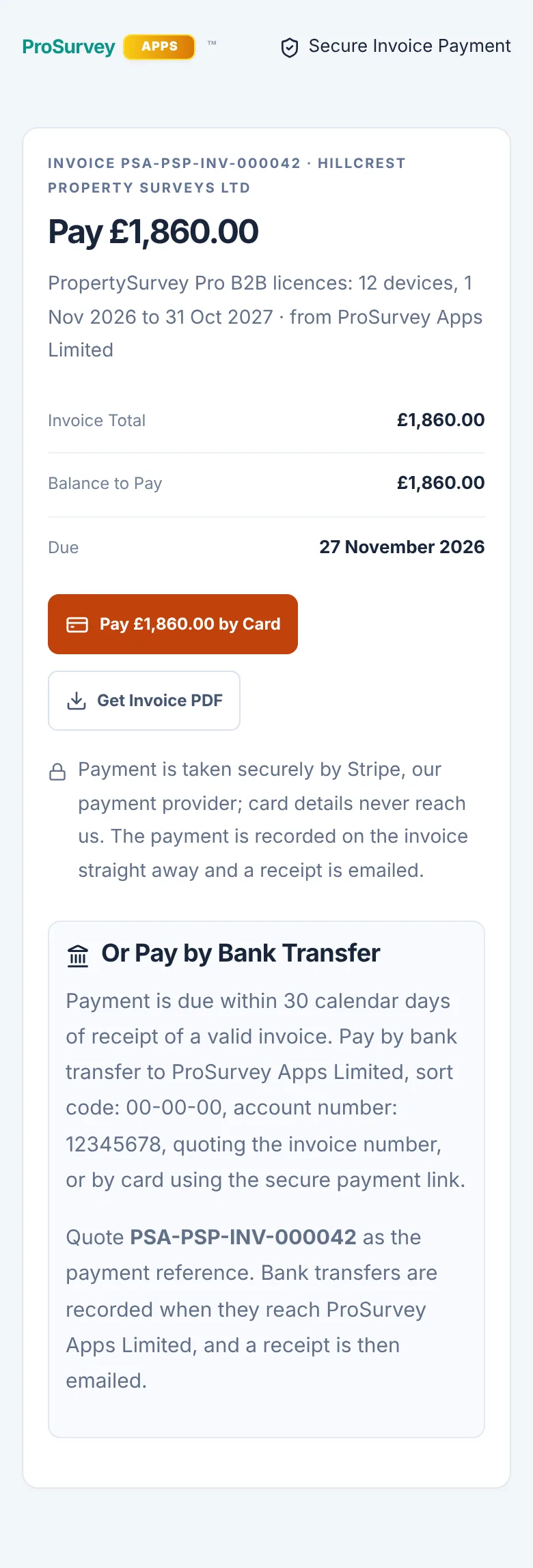
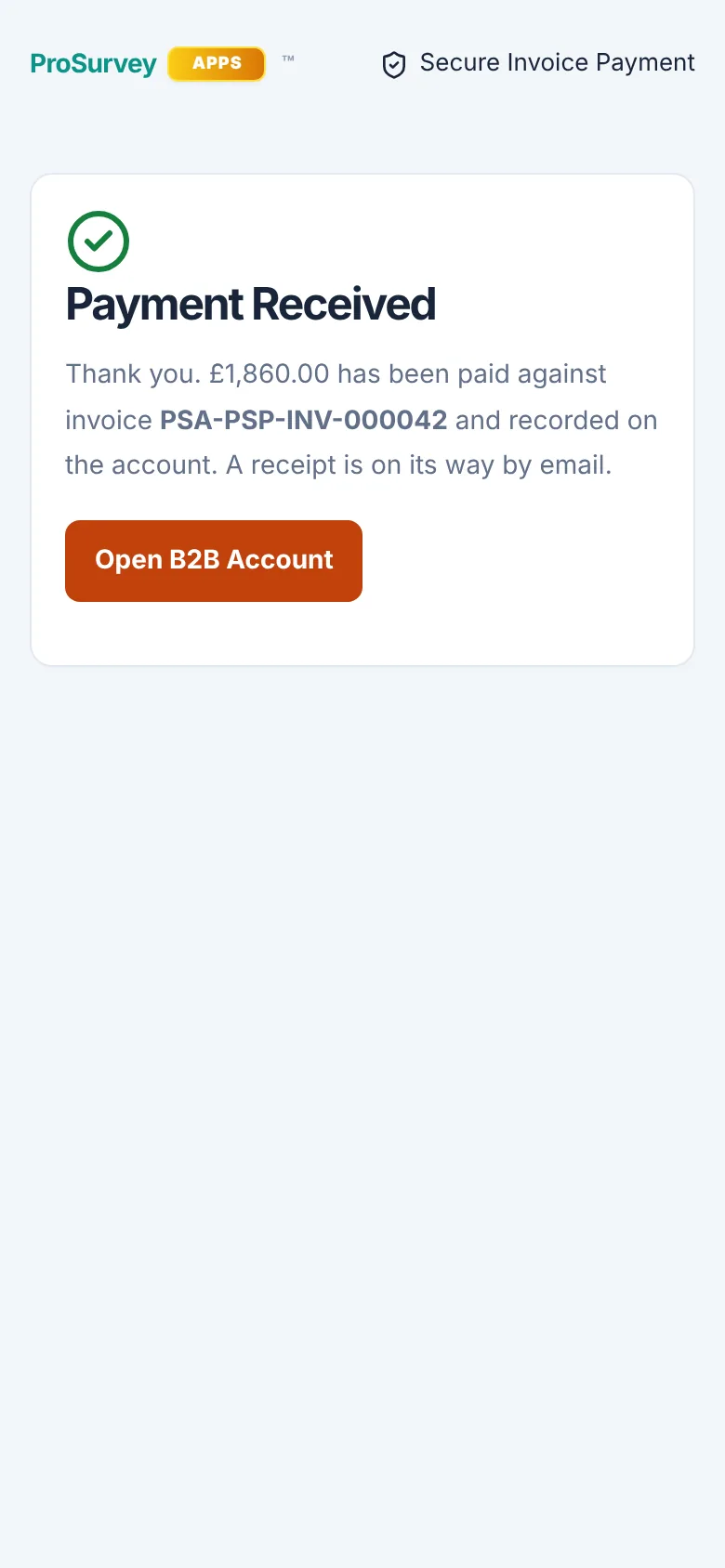
When the invoice is paid, by card or transfer, the receipt goes to them as well as to your billing contact.
Every payment we record gets a receipt, whether it came by card or bank transfer. We email it to your billing contact, to whoever paid online, and to anyone the invoice was sent to with Send to Finance. The receipt and a copy of the invoice are attached as PDFs.
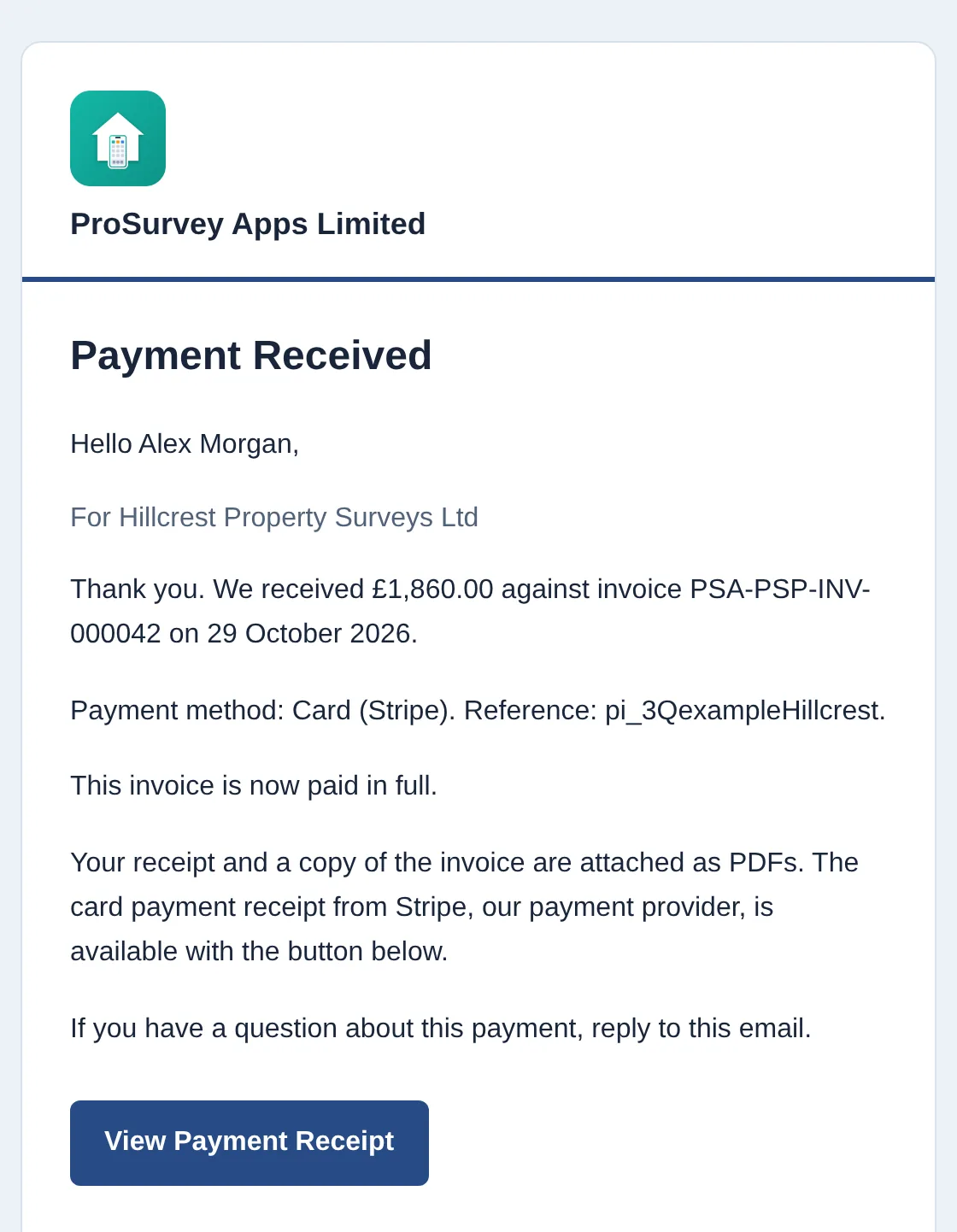 (opens full size in a new tab)
The receipt number is the invoice number with an extra code on the end. It shows who paid, the date, the method and reference, and what’s left to pay, if anything.
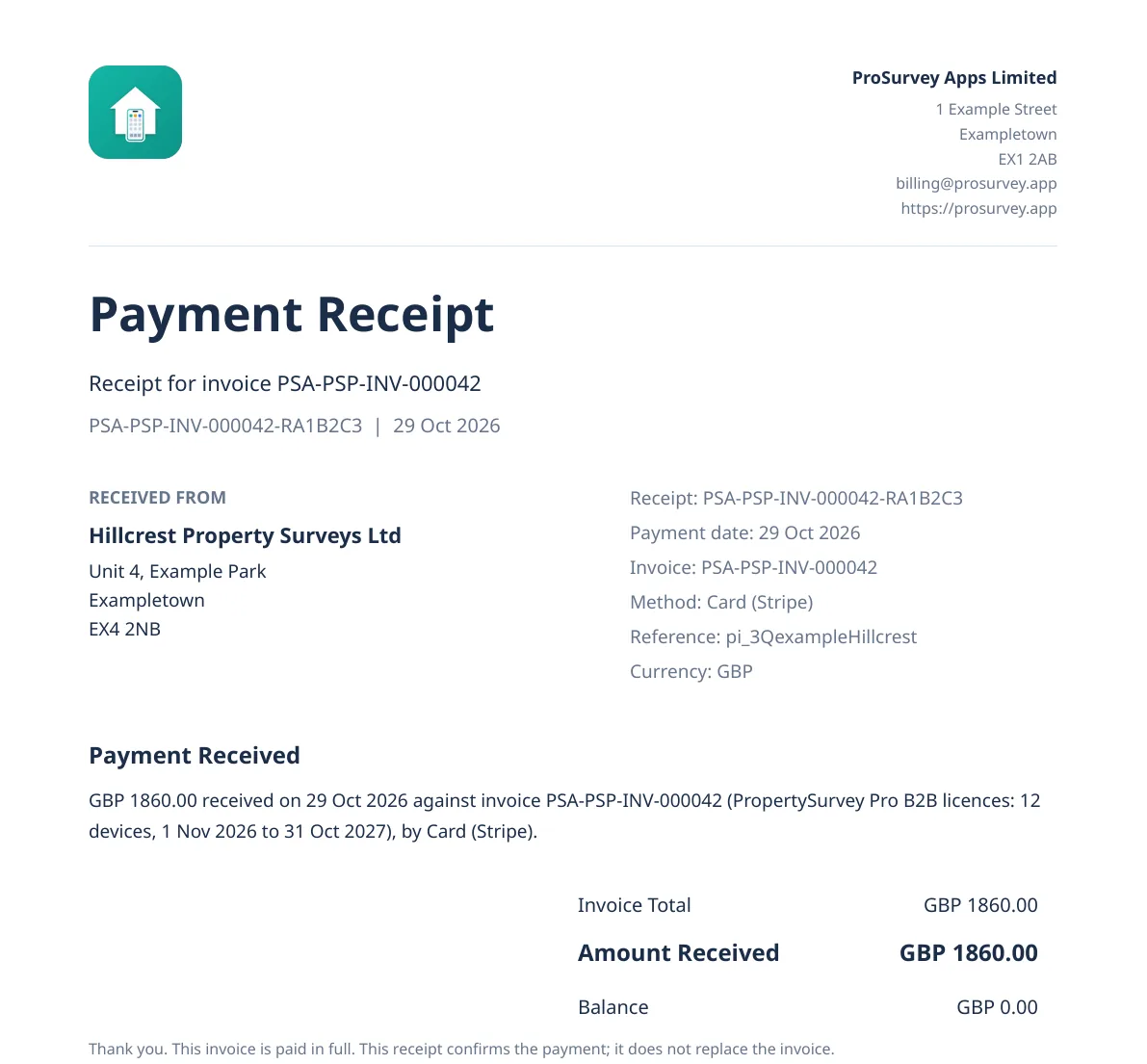 (opens full size in a new tab)
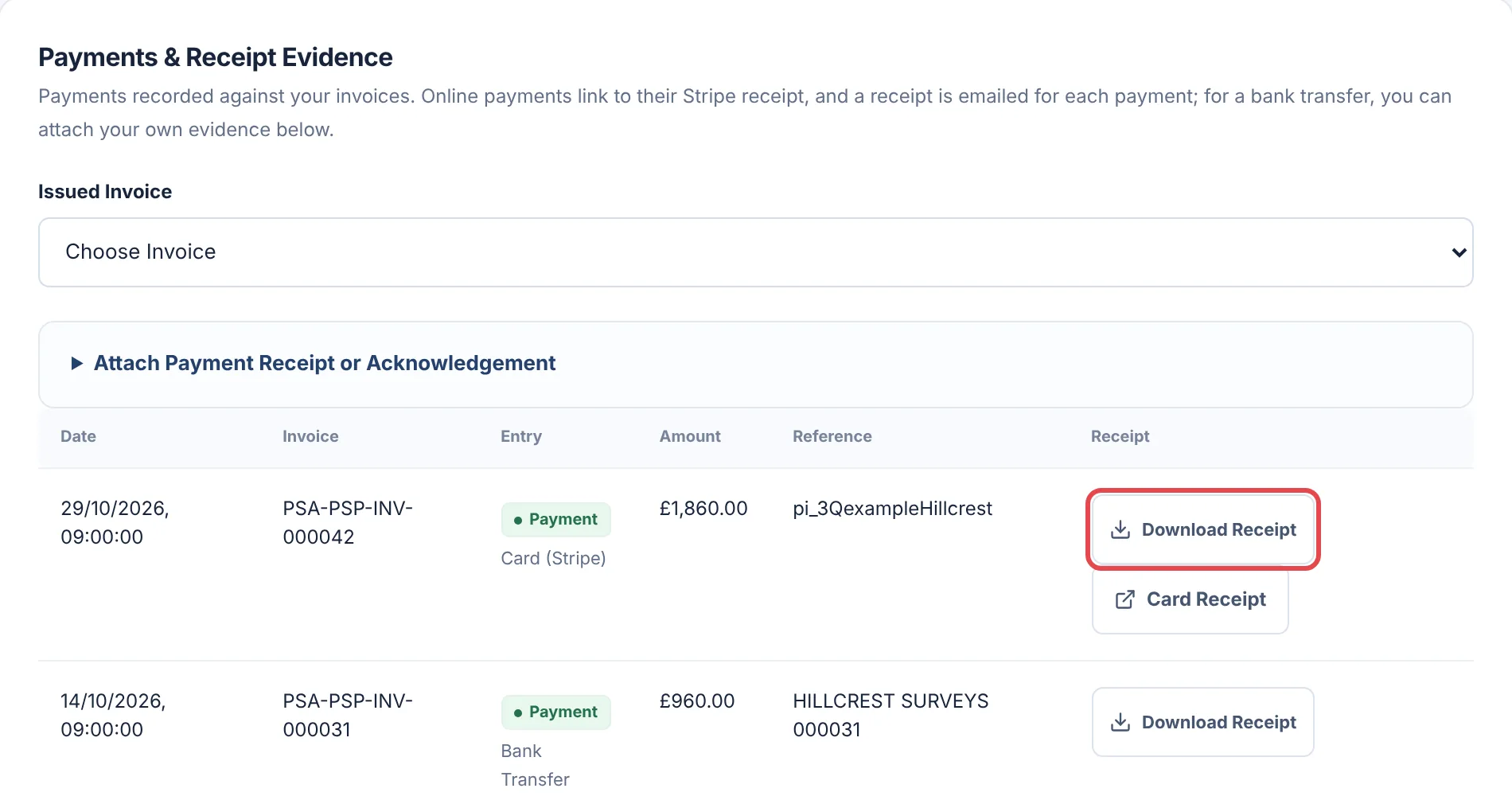
To get a receipt again, open Payments & Receipts in Billing & Documents and choose Download Receipt. Card payments also have a Card Receipt link to the receipt Stripe issued, which some finance systems ask for.
 (opens full size in a new tab)
Paid by bank transfer and want to keep your own proof with the invoice? Use Attach Payment Receipt or Acknowledgement on the same page. Attaching a file doesn’t mark the invoice paid. We do that when the money arrives.
We never edit an invoice once it’s issued. If the amount needs to come down, for example because you dropped devices part-way through a term, we issue a credit note against it. The original invoice stays exactly as you received it, so your records still match ours.
We email each credit note to your billing contact with its PDF. You’ll also find them under Credit Notes in Billing & Documents.
It shows on issued invoices with something left to pay. Stripe can’t take less than 50p, so a smaller balance can only be paid by bank transfer. If the button is missing on a larger invoice, pay by bank transfer and contact us so we can look into it.
Payment links last 180 days. Use the button in your latest invoice email, or open the invoice in your B2B Account and choose Pay Online or Send to Finance again for a fresh link.
Transfers are recorded when they reach us and we can match them to the invoice, which is much quicker when the invoice number is the reference. The receipt is emailed as soon as it’s recorded. If it’s been a few working days, reply to the invoice email with the date and your payment reference.
Ask them to check junk or quarantine. The subject starts with Invoice to Pay and the invoice number. If your organisation holds outside email, IT may need to release it. You can send it again from the invoice.
Nothing was taken. Try again, try another card, or pay by bank transfer. Some company cards have a single payment limit lower than the invoice. Your bank can tell you.
Reply to either receipt email and tell us. We’ll refund the second payment to the card or account it came from.
Anyone with access to your B2B Account. The person you send an invoice to with Send to Finance can pay that one invoice and nothing else.
No. You pay the amount on the invoice, whichever way you pay.
Guidance checked 29 October 2026.
Open your B2B Account to see what’s outstanding, pay it, or send it to your finance team.